Showing posts with label problem. Show all posts

Friday, 7 April 2017

LulzBot TAZ 6 Testing Part 2 - Problems, Printing, Materials and Tuning to perfection.

For this second part of the TAZ6 setup I'm looking at some initial issues found with the setup and operation of the TAZ6. These were quickly resolved, but showing you the process may assist if you have similar problems on your 3D printer.

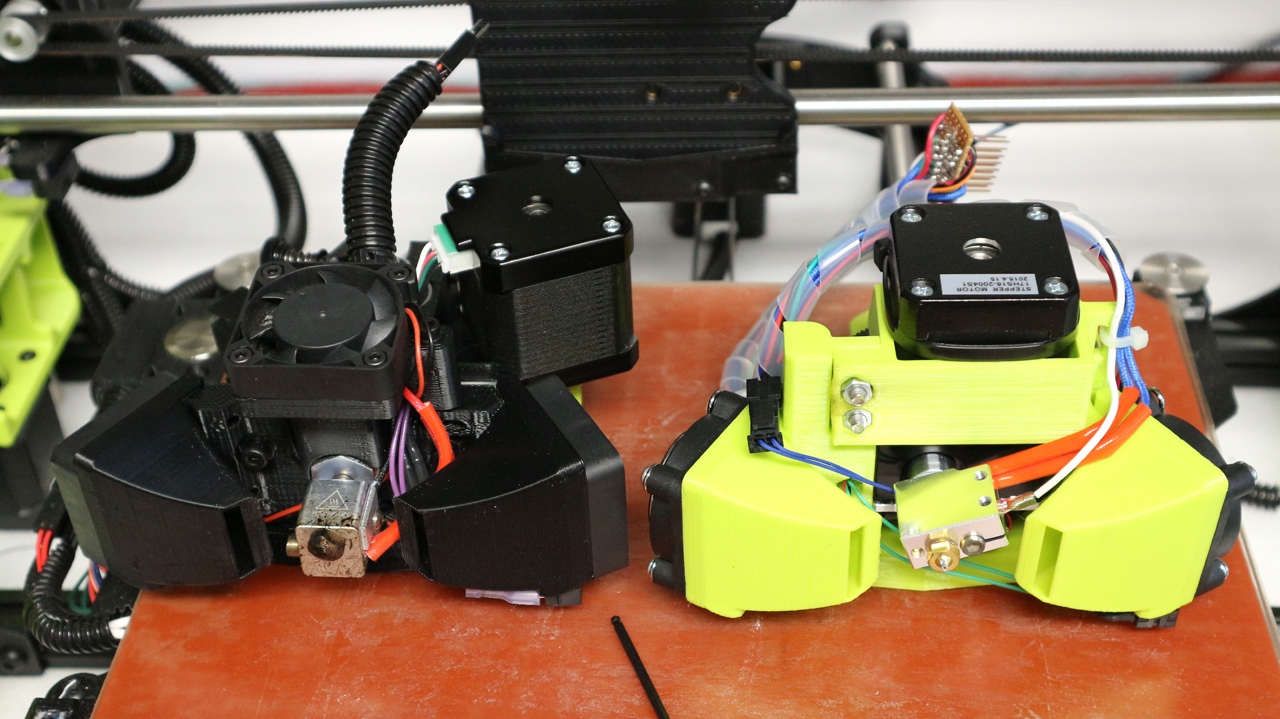
I was also sent a MOARstruder by the LulzBot team, I talk about it in the video along with a custom tool-head I have made for the TAZ 5/6 using the E3D Titan AERO extruder+hot-end.


Further details about the MOARstruder can be found here, on the LulzBot Website.

The MOARstruder has a 'Volcano' compatible 1.2mm nozzle and long heating block for 100g+/hour deposition rates.

I'll post a separate blog and video about the Titan AERO extruder mount for the TAZ6, I'll also post the files if you wish to try to out too. The Titan AERO saves around 178 grams in weight over the original Hexagon tool head, so you can fling it around faster too.

Further details about the E3D Titan AERO extruder and hot-end system can be found here, on the E3D Website.

The first blog post (Part 1) and video about the TAZ 6 can be found here


The Video below is also over on YouTube if you wish to watch in HD and also subscribe to my channel for more videos, help and advice.


If you want to skip parts, then here is a quick jump index -

00:10 - Intro & Catch up
00:50 - I have a MOARstruder !!!
01:15 - We can print MOAR
02:10 - 3Kg of Polymaker PLA
03:10 - Special Colorfabb nGen
05:00 - E3D Titan AERO on the TAZ6 (Volcano)
06:40 - Mesh Bed levelling setup advice
09:15 - Tweaks, changes & results
09:30 - Setup problems & solution

I will post an update on the print progress with both the MOARstruder and the Titan AERO on the TAZ6.

I'll also tidy up and share my firmware setting changes and print profiles I'm now using for TAZ6 printing. I initially started with PLA, then nGen and PETT (t-glase). I still have Nylon, flexible and composite profiles to generate and test.

On with the 3D printer setup and a few wiring problems...

I had one initial problem with the SD card reader built into the TAZ6. The SD card was not being recognized on the LCD display as being inserted.

First I thought that the SD card may just have been blank or faulty, but after checking it had some contents and was formatted correctly I investigated further.

This cable for the SD-Card connector had fallen off - I'm guessing during transport.

After opening up the side panel housing the power supply and the main electronics control board, I soon spotted that a cable was hanging in mid-air over the main RAMBo control board. When checking this was easily identified as the main serial connection to the SD card mounted on the user interface LCD display board.

Only 4 pins of this 8 way connector are being used, that's not a great deal of friction to lock this connector in place. If you look at the connector in the bottom right, you can see that spare unused pins have been fitted into the 8 way connector. Adding these unused but fitted pins adds more friction and helps to lock the connector onto the mating pins. Especially important on this cable as only two pins are connected. A much better solution is to for positive locking connectors to the RAMBo electronics board.

I checked the correct orientation and connected the cable back onto the RAMBo board. this resolved the SD card reading problem, and allowed me to get started on a test print that's included on the supplied SD card.

This was a simple problem and a simple fix, but for anyone without the confidence or desire to open up the TAZ6 it may have been only fixed by returning the machine to the supplier or manufacturer.

This cable and a few others used on the RAMBo are not 'positively locking', this means that they could fall out with a sudden jolt or unfortunate movement of cables. In this case it was probably during transportation as LulzBot would have checked (and indeed they supply a printed check-sheet of machine functions) that the SD card interface was working before leaving the factory.

This connector for the SD card also only has a few connections fitted, this means that it has quite low friction and is even more likely to fall out. Over the last 25 years as an electronics engineer I have seen a number of ways to combat this problem, you can simply add more crimps into the spare unused pin positions as a way to increase connection force (friction) as seen above. But the best way is to use locking connectors on the electronics board. The basic box header connections usually fitted to RAMBo (and other 3D printer electronics) are very low cost and used everywhere. You can get compatible shrouded box connections that incorporate both polarizing features - to ensure the connector is not connected in reverse or off-set and also a plastic locking clip that will keep the connector mated until you want it to be removed. They would be a drop-in replacement, so would not require any changes other than a different supplier on the electronics bill of materials. One other nasty way is to add a drop of hot-melt glue or silicone to physically 'lock' the connector cable to the board, but that's really not a good solution.

In my view, changes to this and some of the other connections ( housings and mating cables) on the RAMBo board would significantly reduce the chance of cables becoming accidentally dislodged in use or transit.

I would be interested in knowing if anyone has had a similar issue with this or any other electronics that do not use positive locking connectors (comment below if you have or have an opinion on this issue).

On the plus side the wiring inside the electronics box is tidy and many attempts have been made to improve the safety factor for anyone opening up this machine. Mains voltages are well routed with correct terminals crimped and fitted so minimal exposure to live parts are exposed.

Obviously make 100% sure the mains power input is removed and disconnected before you open up any 3D Printer or any other device for that matter.

The power supply is also CE marked as is the entire machine. Along with both European and American EMC testing standards.

As well as a CE mark and electrical safety, it's obvious that this machine has also gone through EMC and electrical standards for operation and interference. That's a really good thing and something that we still do not see on many other 3D printers sold as kits and fully assembled machines.

The round grey ferrite filters shown in the images below, are wrapped around various cables. This indicates that during machine testing of EMC and EMI areas were identified that needed some suppression of electrical noise.

The mains input filter (metal can in left side of image above) also helps to reduce conducted emissions back down into the mains of your house (and other people's houses).

Usually long cables like motor connections for example will act like ariel's attached to the electronics, these can radiate electrical noise and can also pick up radiated electrical noise from other equipment around you.


 Adding a ferrite clamp can often reduce these problems and allow EMC approval of a machine like a 3D printer.


Seeing these indications of a well designed, carefully assembled and correctly tested product makes me very happy. It's something many users don't even think about, but when you have a product with heating components, high currents and moving cables, I would strongly urge you to ask the questions - Has the machine you are considering been both safety tested and passed relevant electronic approval standards for your country?


Top tip for limiting the use of Mesh bed levelling -

If your 3D printer uses mesh bed levelling (it takes a number of probe point measurements across the bed and uses this to compensate for an incorrectly levelled surface) - Then do spend some time trying to get the bed manually as level as possible.

Why? - Basically because when the hot-end moves around the build area it has to constantly raise and lower the Z axis. The Z axis is the slowest linear movement on your 3D printer. Having a poorly setup bed is also more likely to cause print issues like blobs or strings if you are doing long travel moves, where the mesh levelling compensation is adjusting for +/- >0.5mm of uneven surface.


* Update* - The next two images show an example of how to level the X/Z axis. Below the next two images are also some pictures I used as an example in the video of how to help minimize Mesh bed level movement. The measurement distance on each side of the TAZ6 are slightly different (~3mm) so to make sure you level correctly for the TAZ6 3D printer please follow this link here from the team at LulzBot. - 
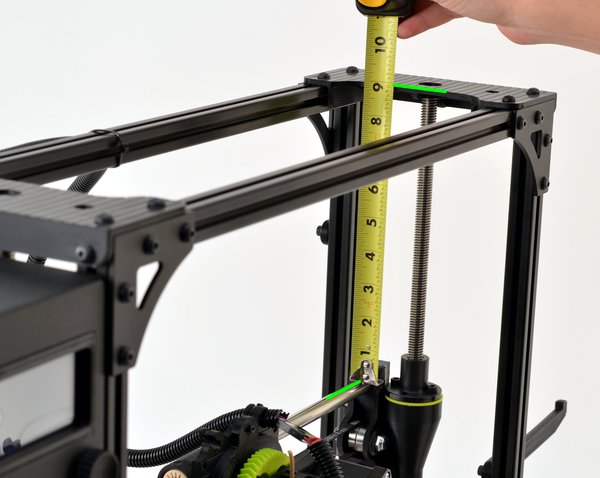

The LulzBot team measure the lengths from the X axis bars to the top, and that's a much better way for the TAZ6 3D Printer.
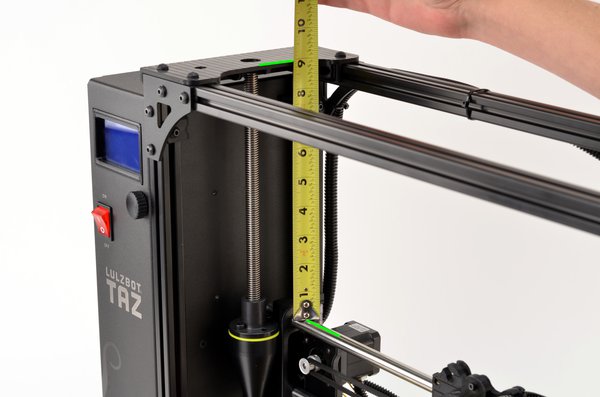


For many 3D printers using mesh bed leveling you can measure each side of the Z axis, and manually turn each lead-screw so they are the same (Again, do check how to do this correctly for the TAZ6, see above).


The most important thing is that the nozzle is at a level and flat point across the entire build surface, so if the left and right lead-screw are at different positions, then that's fine. 


Then check if that has actually made the nozzle distance the same on each side of the build surface.
If not, then adjust so wherever you manually move/place the nozzle (move X / Y carriages) it has a similar distance from the build surface (+/- <0.2mm if possible).

You will get better results if you do this, and you can then also start to tune the firmware to reach higher operating speeds and smoother print results. I'll go over my TAZ 6 Firmware changes in a future video.

Just to give you a sense of the change a few firmware and slicing settings can make to the end print result, take a look at the images below -

First layer of the shelf model - It's perfect.
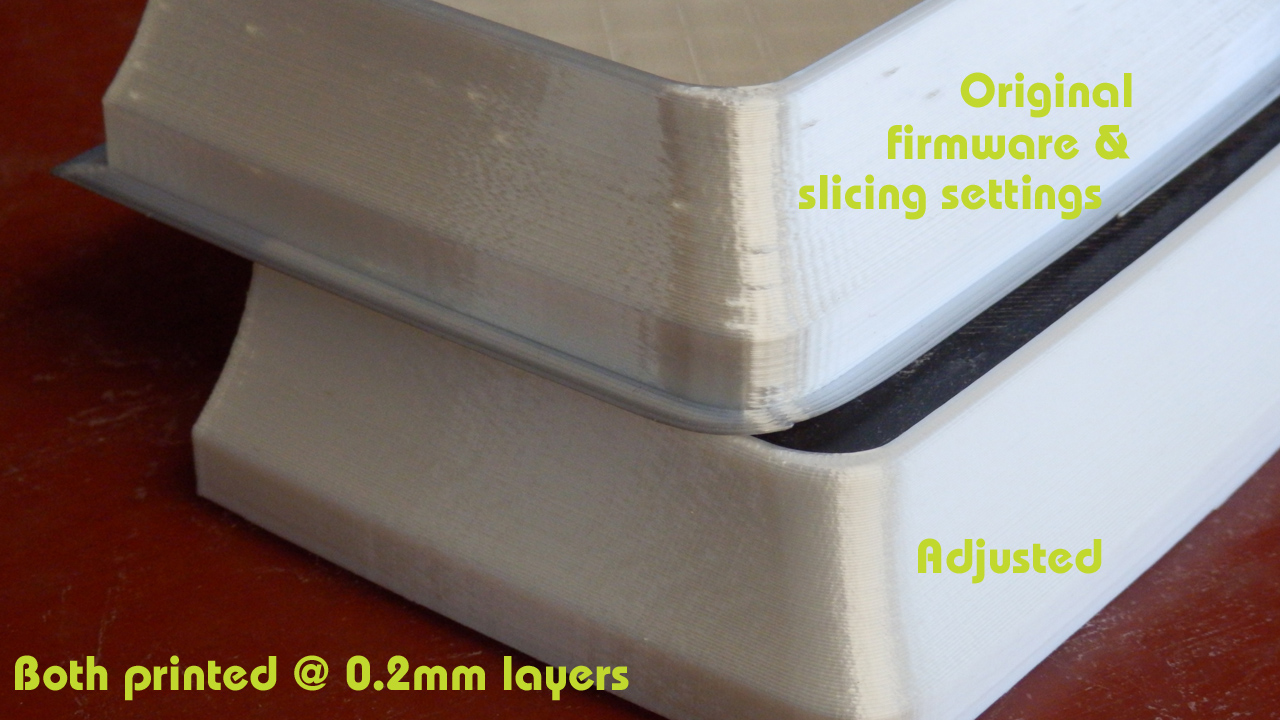

Top part in the image above was printed with the original TAZ6 firmware settings and default Cura profiles for TAZ 6 PLA.

The lower model was printed at the same layer height, same infill and same number of perimeters. The difference was a few firmware changes and revised profile settings. The bottom model also printed around 20% quicker than the original setup.

I use Polyalchemy Elixir PLA to test print quality, it will show up the smallest flaw in printing settings, so it's great to refine your profiles and acceleration settings.

The above model is the really nice secret shelf by Tosh You can get the file here

I'll show more examples of these changes with printed models in the next TAZ 6 video.


Before I made the firmware and profile changes, I did print out the samples Gcode models on the supplied SD Card. They show up some print issues, but they can all be resolved with setting changes.


Printed in Colorfabb nGen (light grey because it shows up defects well to the camera).


You can see some missing perimeter sections in the top of the funnel above.


We also have a few blobs and retraction strings, all of these problems can be resolved. And when they are the TAZ 6 becomes a stunning 3D Printer.

3DBenchy - Attribution: CreativeTools http://www.thingiverse.com/thing:763622

I'll continue to add more video's and blog posts about the TAZ 6 adventure as they get completed. Please leave comments and feedback below. And I'm really interested in also hearing from any existing LulzBot TAZ owners.

I hope this was useful, thank you for reading & watching, see you next time.

Rich.


Please join me on Twitter @RichRap3D   -  https://twitter.com/RichRap3D

Files and designs shared on YouMagine - https://www.youmagine.com/users/richrap

Files and designs shared on GitHub – https://github.com/RichRap

Files and designs shared on Repables - http://repables.com/u/richrap/

My Youtube channel is here, all 3D Printing and Hi-Def video content.


Friday, 7 October 2011

The 'Art' of failure - When 3D prints go wrong and lessons from failure

Everyone has the odd bad print or failure that results in something interesting or frustrating depending on how urgently you needed the part to print.

Here are some of my failures and tips on how to avoid them and lessons learnt. (And if you can help me explain what happened last weekend to one of my PLA filament rolls I would be most interested - see at the end).

It may sound odd, but it's really essential that you fail when doing 3D printing, It tells you so much about your machine, the boundaries you can operate in and how good or bad things can be. If all you do is print with safe settings or never play with the electronics or firmware the you are missing so much of this wonderful project.

You also can't just be told what settings to use and how fast to run etc. you need to feel how your particular machine works and what it's capable of. So experiment, and when you think you have the perfect settings, turn down the extruder temperature until your filament drive fails, that's then a good reference point.
Also increase print speed until your hot-end can't keep up even with a few tens of degrees C hotter than you think you should be running, that's another good reference point.

Below are a few of my print failures during the summer, and some reasons for the failure where I know what happened.

My most common form of failure with ABS is the hobbed bolt filament transport getting jammed up.

Usually there are two reasons for this -
If you print too fast for your hot-end to keep up melting the plastic then usually after the first slower layer layer it will start to jam and grind the filament in the hobbed bolt teeth, then you need to clean it all out.

I have also observed hobbed bolt jamming from using too much extruder reversal when printing lots of small complex parts (a set of many gears for example), the extra too-and-fro on the filament can cause grinding and jamming, but not with all ABS.
I have discovered that some of my ABS needs to be printed at a slower rate to stop this from happening, other ABS I can print faster and I don't get any problems. ABS for me is generally more of a pain to print with.

Pink ABS - This failure was inadequate heating in the hot-end for the speed of solid fill - Solution for me was to use a different hot-end design so I could print faster and get better heat transfer into the filament at speed.

ABS from China Orange - Printing too fast, this part is quite hard to print, it has a very small base to secure it to the heated bed and it's quite small so it prints too-quickly.

On the left it's printed as a shell, (80mm/sec) total disaster, the warp is significant as the layers have no time to cool and they just make a mess, eventually the extruder nozzle will kick the part off the heated bed.

On the right the same part but printed with infill, and 50% slower (40mm/sec), similar problem really, the part was kicked off the bed at this point.

When you print a small object too fast it's odd watching prints that are still mostly molten they bend and move around while more plastic is added, eventually it all ends in failure.

Solution  - Print more than one part at a time, or slow down the print quite a lot, my quick solution was to print the part in PLA, it printed fine at 80mm/sec.

A few things are wrong with this print, but other than the temperature being wrong the main issue was the Y motor had not enough drive current, Solution - Increase motor current on your stepper drive.

I have yet to have a hobbed-bolt failure with Makerbot ABS, only machine failures have caused prints to fail other ABS plastic seems to have very different properties to deal with.


PLA - I love this print - A more extreme version of under current motors, the red lines on the print show where i was playing with the motor current on the steppers, at the bottom the Y motor current is low causing slip every few layers, I then turned it down and you see a regular slip every layer change, I then turned it up to the correct setting and the top printed ok. I let this print finish just for the fun of it,

And it's also an awesome demonstration of overhang! Who needs support material.

This one is the opposite problem, the X motor current is too high also causing part sheer but this is due to the stepper driver overheating and shutting down. If you can identify this is happening, you may need to use a fan on your stepper drives depending on your mechanical make-up and motor type or you may be able to reduce your motor drive current a little.

Parts that are not anchored down really well can pop-off of the print bed, causing havoc and destruction everywhere they get pushed around by your hot-end.
This extruder gear came loose and slid itself into a bigger gear and the print continued for quite a few more layers before I spotted it. 

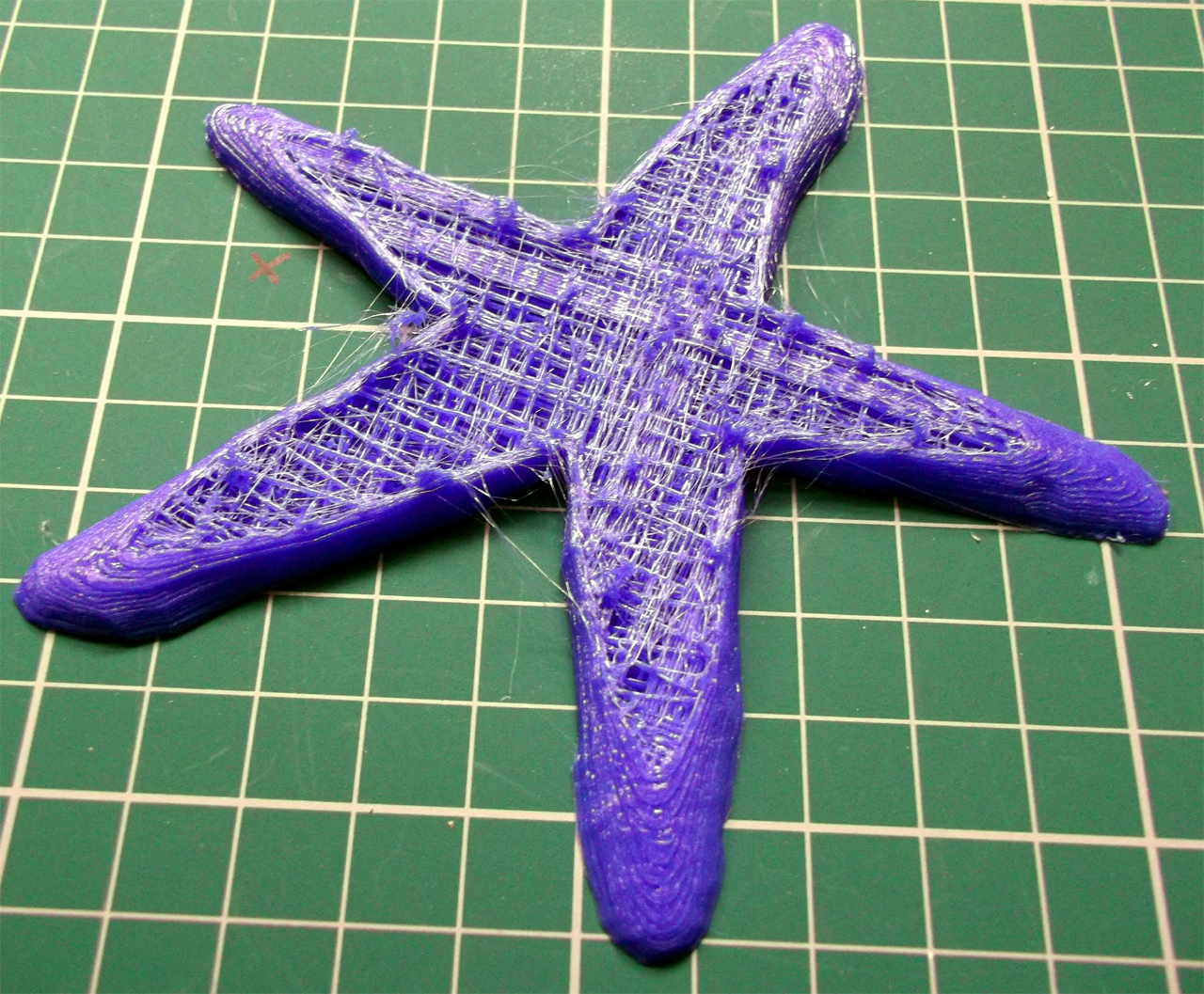
PLA Starfish, This was my fault, It just ran out of filament during the build! poor starfish.


The other thing you get in 3D printing is lots of bits and outlines, this was less than one month of evening printing.

If only we could recycle it.... one day.

Temperature - 
Temperature of your hot-end is very linked to extrusion speed and also print quality.
If you print at about 30mm/sec then a lower temperature of anything between 165 to 190 Degrees C is usually fine but as you increase temperature or speed (or both) things start to get interesting.

In this picture you can see the effect of temperature on translucent PLA at a fixed print speed.
The heated bed was 65 degrees C and the print speed is 60mm/Sec.

I started off at 205 Degrees C then increased to 215, at these temperatures the PLA starts to produce loads of tiny bubbles and gives the print a matt and frosted effect. Back to 195 and the PLA looks as you would expect.

Bonus points if you can guess what model this is (check out the reflection).

It's possible to produce nice effects on your models by altering print temperature.

Opaque PLA tends to go slightly matt at higher temperatures and low-to-normal speeds, I don't see evidence of bubbles, but it's hard to tell exactly what's happening.

When I print at over 120mm/sec I need to have Opaque PLA at +225 Degrees C, and translucent at +215 Deg C, at this speed and temperature you do not see the matt/frosted effect in the finished object, I guess that's just down to the limited time the Plastic spends in the heated chamber unless anyone can give a better explanation?

And talking of PLA and temperature - Last weekend I had a roll of PLA shatter on me!
This was one of the last rolls of China sourced 3mm PLA and it's about 4 months old, I keep them in plastic boxes and I have Makerbot Black PLA and Ultimachine White PLA rolls that are much more tightly wound than this PLA from China and they are also in the same sort of boxes, I also had Red and Yellow Chinese PLA from the same manufacturer stored in a similar way and that's still just fine. 

All my other Plastic is stored in plastic bags and cardboard boxes all the time.
Now, here in the UK we have experienced quite hot/cold weather changes for October, so I'm putting it down to that, but I still don't really understand why it happened just to this roll. Over a period of many hours I could hear the PLA 'ping' and shatter into lots of smaller pieces, very odd. It seems to have settled down and some parts of the coil are fine, even the centre section that was more tightly wound?

Hot-end Jamming - 
My only other odd failure was the jamming of hardened filament at the hot-end, this seems happen after many months of printing due to build-up of solid materials, probably because I tend to run PLA hotter and faster than 'normal' which leads me to my top-tip I'm still investigating - 
Top Tip - I would be interested if anyone else has spotted this  - If you start to see very, very fine 'hairs' of plastic on your printed parts for no real reason you can think of, this may be a sign that your hot-end is about fail, from build-up of hard material. I have spotted this on the last two times my hot-end needed cleaning, it will need disassembling and maybe drilling and cleaning out, after that it will be back to normal and work for many more months. as long as the PTFE sleeve or barrier has not degraded, then it will fail again quite quickly - keep an eye out for the 'hairs'

Some questions for you -
What's your best failure or most spectacular!
Any tips for testing the boundaries of your machine and 3D printing, please comment below -
Anyone done any 'Art' with failed prints?
Thanks for reading and go make something fail, you will learn loads!

Rich.